Scrolling One Direction
We typically advise that visitors can be expected to scroll horizontally OR vertically, but ideally not both.

This week we'll work on using a variety of activities on the same page, considering which tools pair well together and which content management tools can help tell that story. To do this, we'll add a few tool types and try organizing those tools in a variety of different ways.
Today's Agenda
| 0:00 - 0:10 | Homework Review -- Please volunteer to share your work with the group to facilitate discussion |
| 0:10 - 0:25 | Page Design Best Practices and Layout Options |
| 0:25 - 0:55 | Demonstration of Tabs, Call to Action, and Feature Grid, sub-pages and navigation |
| 0:55 - 1:00 | BREAK |
| 1:00 - 1:20 | Overview of all engagement tools and discussion of application |
| 1:20 - 1:40 | Build an engagement tool together and discuss moderation |
| 1:40 - 1:55 | Questions? |
| 1:55 - 2:00 | Wrap up & homework |
We typically advise that visitors can be expected to scroll horizontally OR vertically, but ideally not both.
When deciding if you want everything (engagement activities and content) to be organized on one page or if you want to use sub-pages, think about where the URL you're sharing in communications takes them and what actions are most obvious.
Ensure that if you're using site sub-pages that there's a way for people to find the main page again--navigational bar, buttons, call to actions, however you want to do it!
Whatever the main goal is for the current phase of engagement--ingesting information, proving feedback, reviewing documents, etc. --make sure that it is the most prominent thing on the page and use other visual cues to ensure visitors don't miss the prompt.
A clean page setup that preserves an archive in the bottom half of the page. A video walks you through the project, and a feature grid takes you on a journey through the intended engagement process.
The purpose and prompt is clearly stated at the top of the page, followed by accordions for a "choose your own adventure" learn more option, and a feature grid to help you explore the otherwise large "study" document. On the side, a Document Library, FAQ and Timeline provide further orientation and background.
Clear orientation and instructions make way for a series of informational videos and a gamified, step-by-step series of activities designed for children and their parents to complete together. Take note of the use of sub-pages and Call to Action tools.
This page is short and sweet -- using a Feature Grid with Anchor Points (a very cool hack!) to help visitors navigate to different items on the page. The only engagement tool, a Social Map, is placed pretty high up on the page, and followed by an Accordion tool for additional as-needed information.
Buttons indicate engagement opportunities and the Facts tool highlights key information to educate engagers. Note how each button takes you to a separate Form tool to provide feedback on different projects.
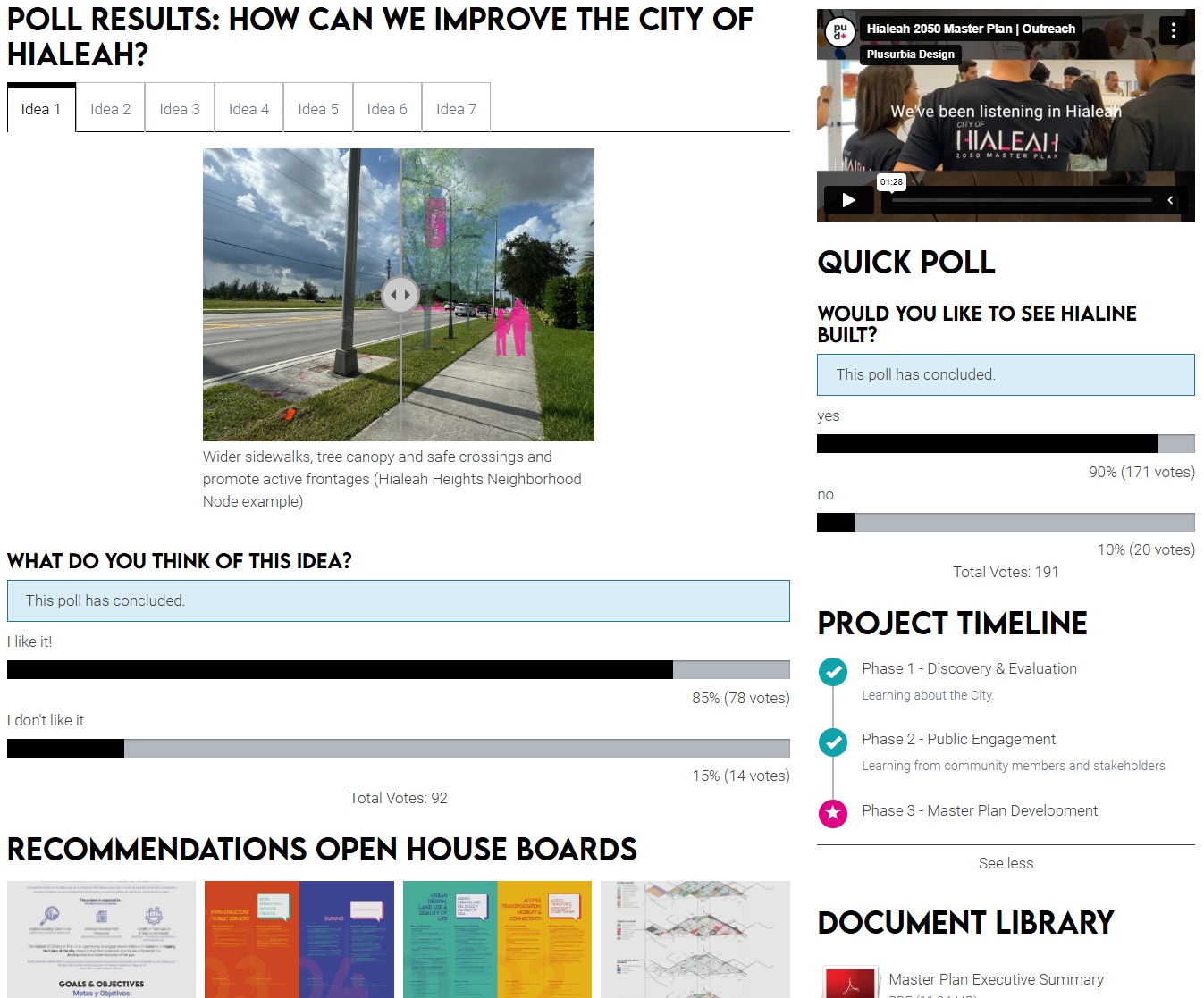
Quick Poll: Poll your audience with a single, multiple-choice question that is easy to respond to, and shows immediate results.
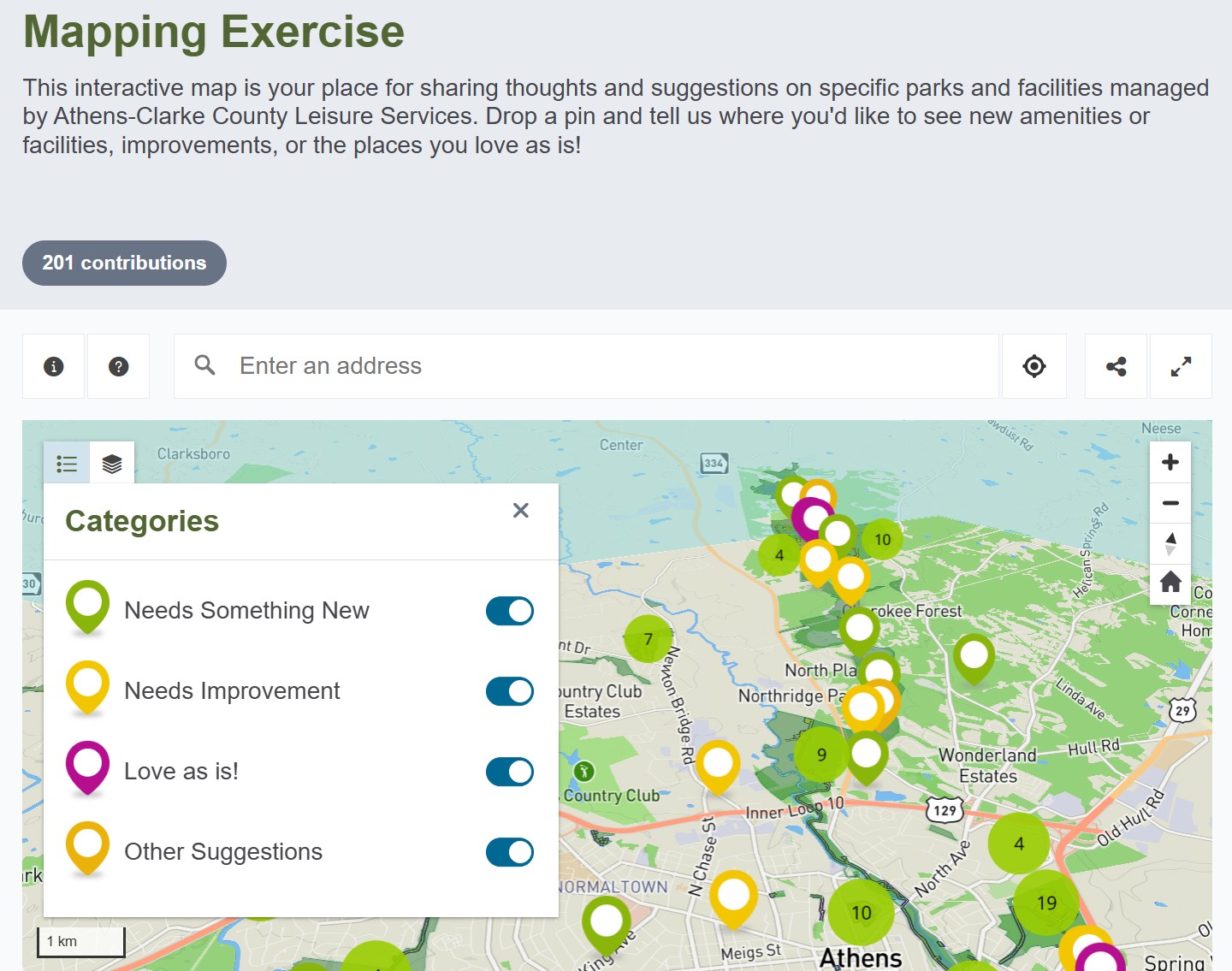
Social Map: Easily collect spatially-based qualitative and quantitative feedback via an interactive with optionally embedded survey.
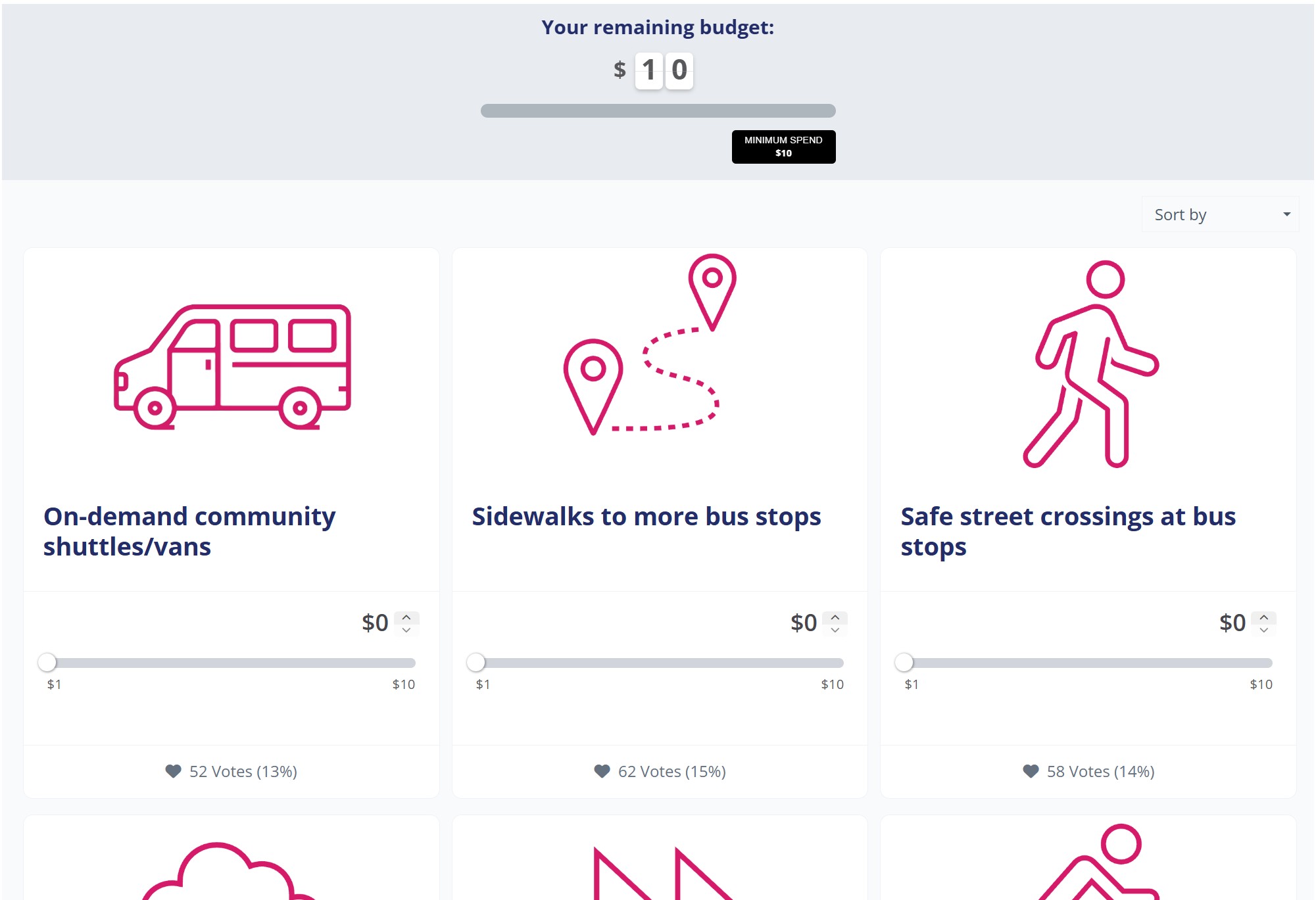
Fund It: Participatory budgeting for assessing tradeoffs that can be set up with dollars or points. Shows aggregate results.
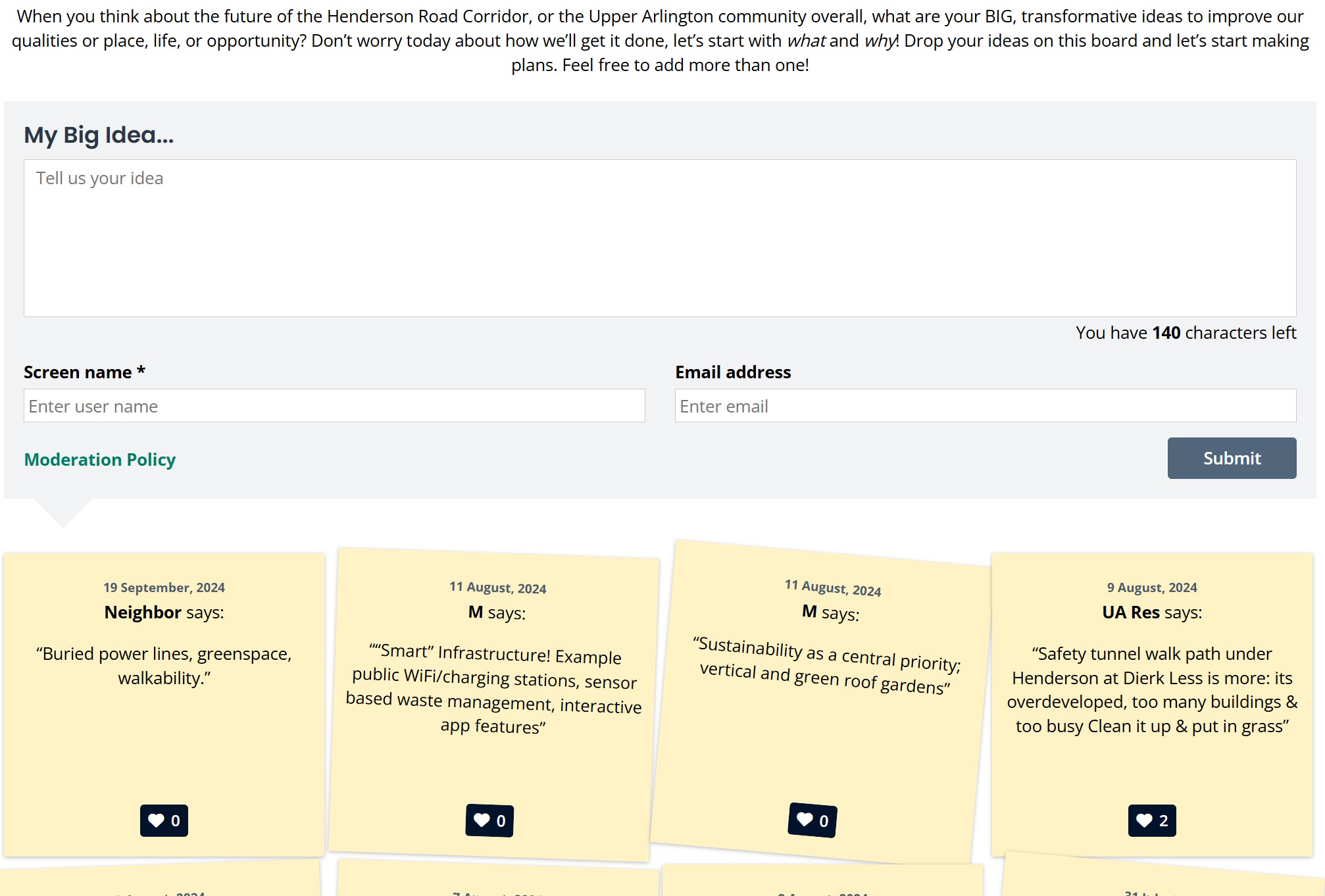
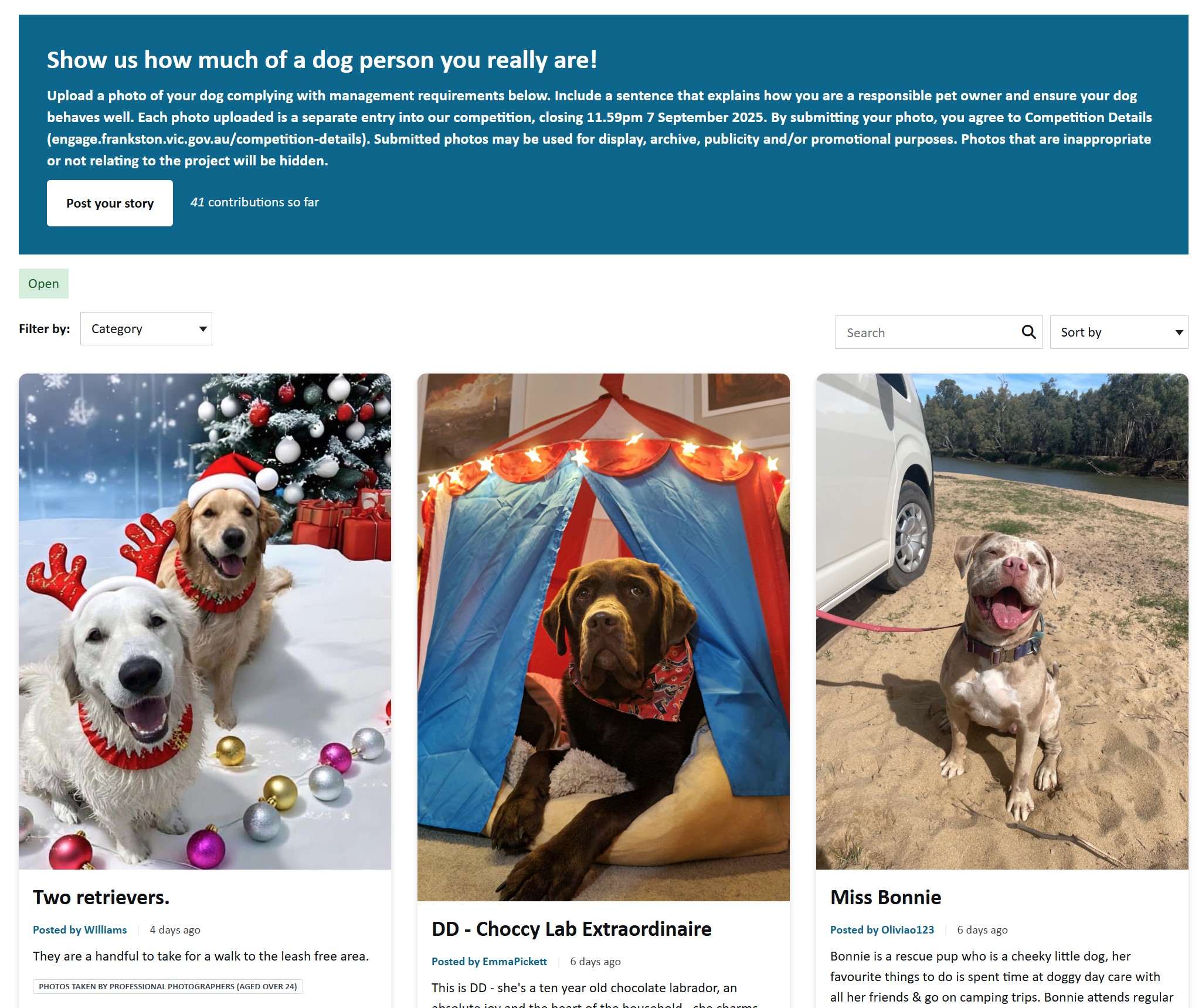
Visioner: A single prompt asks participants to leave character-limited "sticky notes" with optional like/dislike buttons.
Gather: Collect text comments with pictures, videos, and long-form comments where participants can also engage with each other.
Form: Easy surveys from a variety of templates and question types that can include advanced logic and multimedia content.
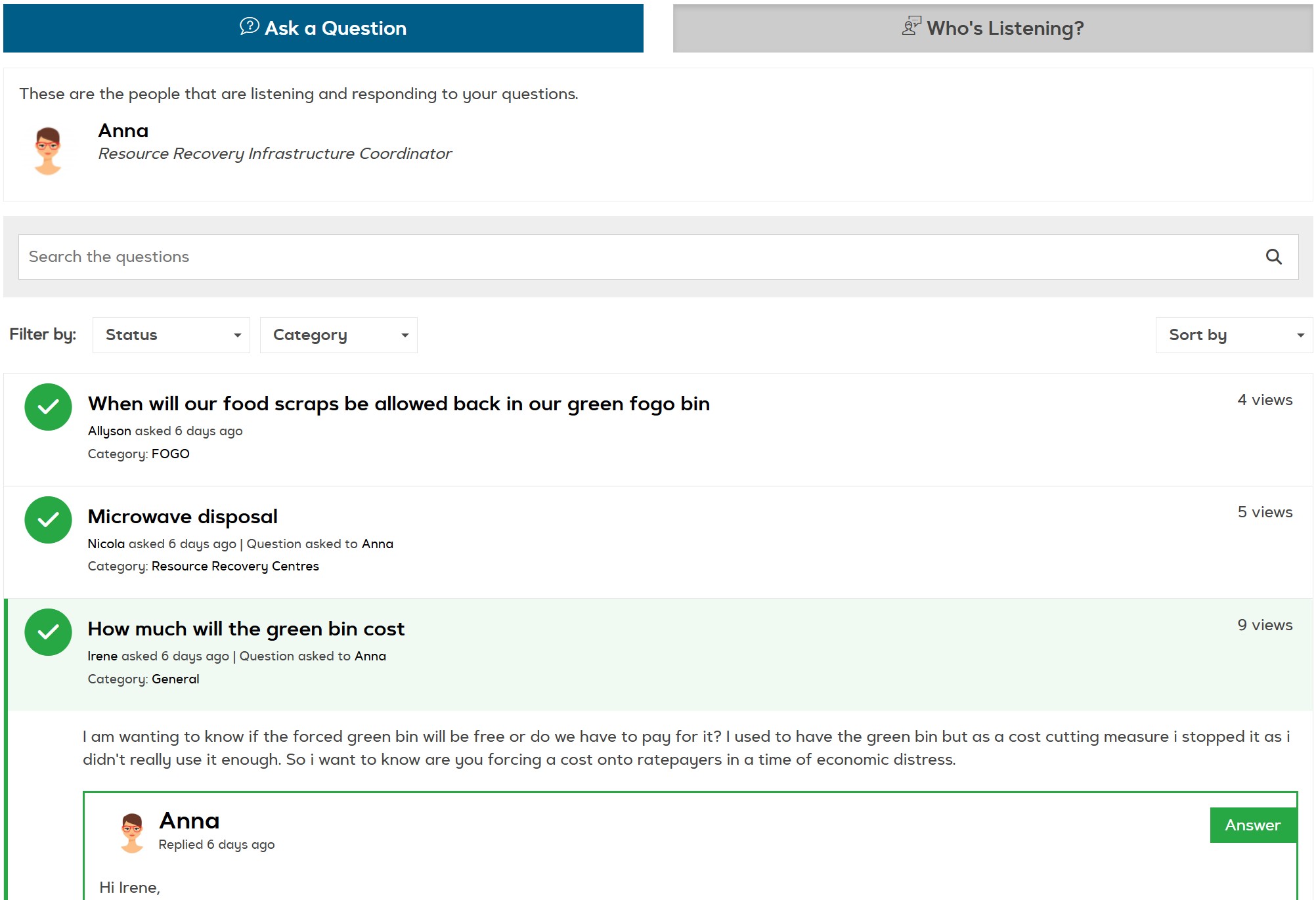
Q&A: Collect publicly-viewable questions and have a pre-determined panel of experts/leaders share responses.
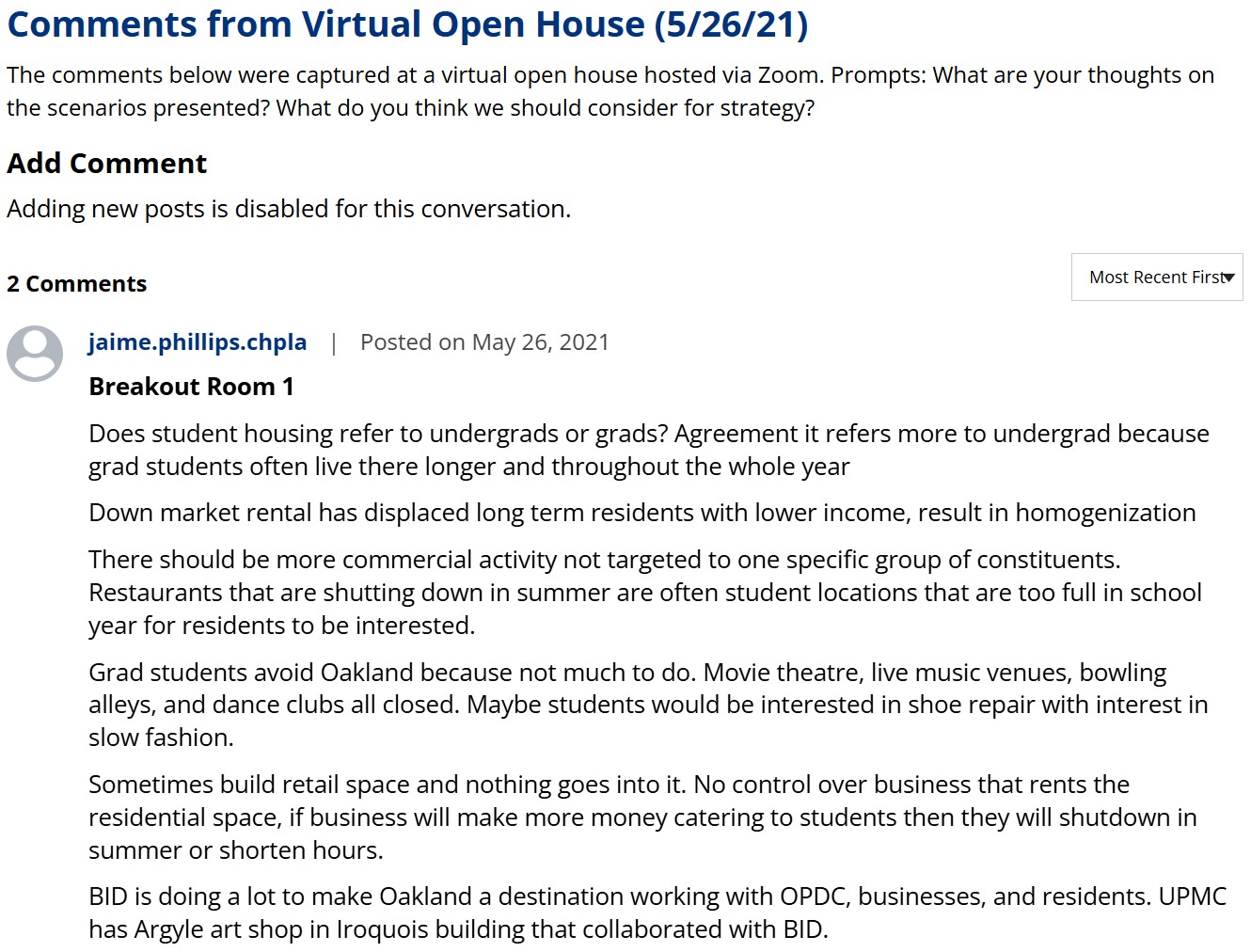
Conversation & Forum: An open comment box leaves many possibilities for varied dialogue and live note-taking.
Over the next two weeks, we'll build out some additional, complicated engagement tools and dive into reporting.
For homework this week, visit the pages of at least two of your peers within this site and leave comments on the engagement tools they've created.
Please leave the direct link to your page below, and give links a "like" once you've left comments on that page so others know where to distribute their work. Thank you!
At the beginning of next week, we'll have time for open discussion about anything you observed as a participant that you hadn't previously noticed when creating your digital engagement tools.